Changing the WebUI Library Version
The WebUI library version used in your AIMMS project can be changed via the Library Manager in the AIMMS IDE. This allows you to upgrade to a newer version or revert to an older version of the WebUI library.
Note
It is important to be aware of the WebUI library version being used in your project, as different versions may introduce new features, enhancements, or compatibility requirements.
MainProject/WebUI subfolder.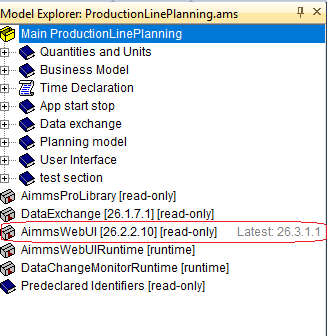
You can also identify the current AIMMS version and WebUI version being used by clicking the AIMMS icon in the footer section of the WebUI.
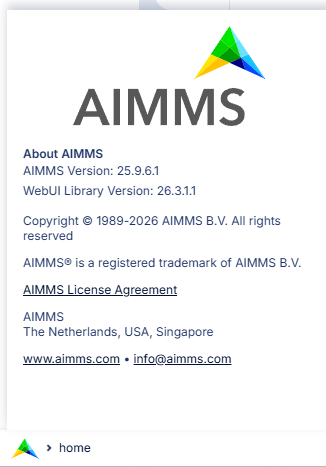
Upgrading the WebUI Library Version
When a newer version of the WebUI library is available, the Library Manager in the AIMMS IDE will display the latest available version number next to the WebUI repository library entry.
To upgrade:
Close all open WebUI browser tabs.
Open the Library Manager in the AIMMS IDE.
Select the WebUI repository library entry.
Click Update Library, then confirm by clicking Ok and Yes on the confirmation prompt.
Save your project.
Restart the WebUI by clicking the WebUI button in the AIMMS IDE.
Changing or Reverting the WebUI Library Version
To switch to a specific version, including reverting to an older one:
Close all open WebUI browser tabs.
Open the Library Manager in the AIMMS IDE.
Select the WebUI repository library entry.
Click Add Library from Repository… to open the Library Repository Browser.
Expand the WebUI node by clicking the + icon on the left of it in the Available Libraries/Versions panel to view all available versions.
Select the desired version. The Details panel on the right displays its properties, including the minimum required AIMMS version under Minimal AIMMS version.
Click Select to confirm your choice.
Click Yes on the confirmation prompt.
Back in the Library Manager, confirm by clicking Ok and Yes on the confirmation prompt.
Save your project.
Restart the WebUI by clicking the WebUI button in the AIMMS IDE.
Warning
Before selecting a version, check the Minimal AIMMS version field in the Details panel to ensure compatibility with your current AIMMS version.
Important
After upgrading or reverting the WebUI library version, make sure to:
Save your AIMMS project.
Close any open WebUI browser tabs.
Restart the WebUI session by clicking the WebUI button in the AIMMS IDE.